Bitwardex Autotrading Panel
Detailed guide on using the Bitwardex autotrading management panel in the Telegram bot
The Bitwardex autotrading panel is available through the Telegram bot @bitwardex_bot. This is a convenient interface for managing automatic trading through Bitwardex servers directly from Telegram. In this guide, you will learn how to use all the panel functions.
Accessing the Panel
Starting the Bot
- Open Telegram
- Find the bot @bitwardex_bot
- Start the bot with the
/startcommand or press the Start button
Main Menu
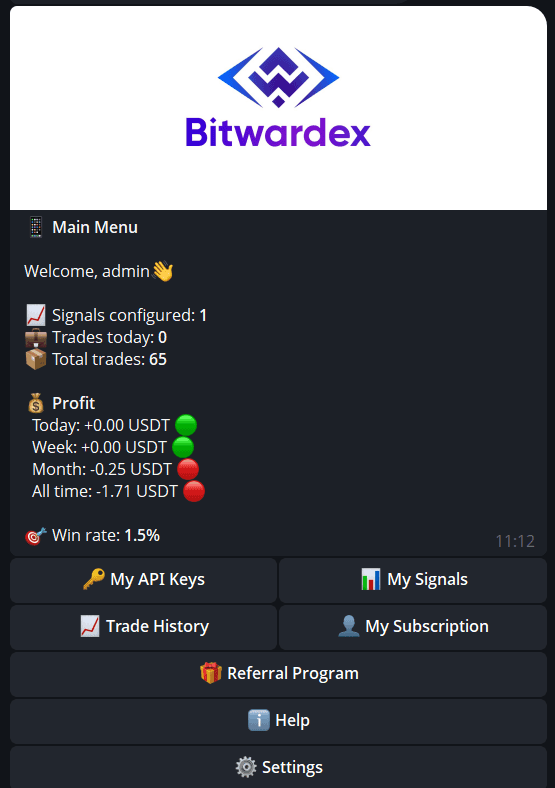
After starting the bot, you will see the main menu with an overview of your trading activity and navigation buttons.
Interface Overview
Main Panel
The main menu shows:
- Greeting — personal greeting with your name
- Signal statistics — number of configured signals
- Trade statistics:
- Trades today — trades for today
- Total trades — total number of trades
- Profit:
- Today — profit for today
- Week — profit for the week
- Month — profit for the month
- All time — total profit/loss
- Win rate — percentage of profitable trades
Navigation Buttons
The main menu provides access to the following sections:
- 🔑 My API Keys — exchange API key management
- 📊 My Signals — trading signal management
- 📈 Trade History — trade history
- 👤 My Subscription — subscription management
- 🎁 Referral Program — referral program
- ℹ️ Help — help and support
- ⚙️ Settings — account settings
- 🔧 Admin Panel — administrator panel (if available)
API Key Management
Adding an API Key
⚠️ Important: Currently, order execution is only available on the Bybit exchange. Support for other exchanges will be added in the future.
-
In the main menu, click 🔑 My API Keys
-
Follow the bot's instructions
-
Select the Bybit exchange (currently the only supported exchange for autotrading)
-
Create an API key on the Bybit exchange:
- Log in to your exchange account
- Go to the API keys section
- Create a new key with permissions:
- ✅ Trading (Trade)
- ✅ Reading (Read)
- ❌ No withdrawal permissions (Withdraw)
-
Copy the API key and Secret key
-
Paste them into the form in the bot
-
Give the key a name (e.g., "main key") for easy identification
-
Save the settings
⚠️ Security: API keys are stored in encrypted form. Never share them with third parties.
Key Management
In the API keys section, you can:
- View a list of all added keys
- Edit existing keys
- Delete keys
- Check connection status
Signal Management
Viewing Signals
- In the main menu, click 📊 My Signals
- You will see a list of all your signals
- Click on a signal to view details
Signal Panel
When selecting a signal, detailed information is displayed:
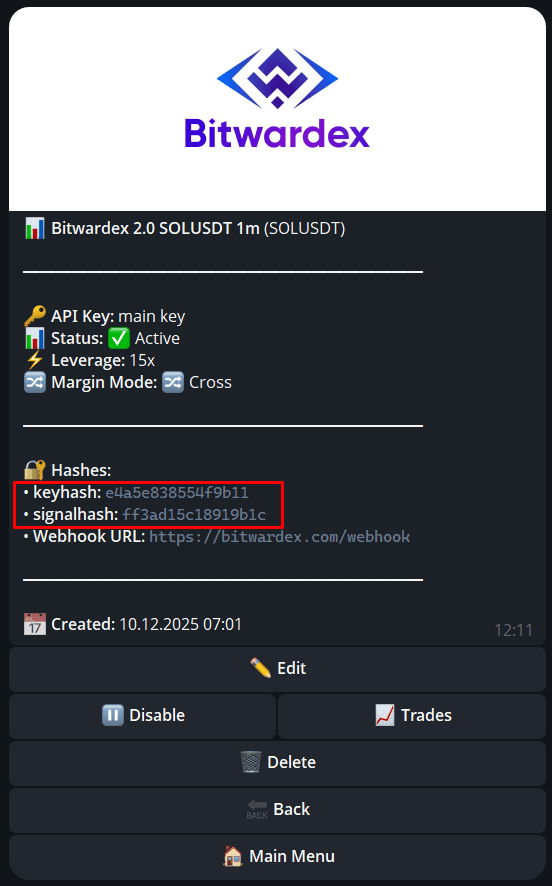
Signal Information:
- Signal name — e.g., "Bitwardex 2.0 SOLUSDT 1m (SOLUSDT)"
- API Key — name of the API key used
- Status — signal status:
- ✅ Active — signal is active and working
- ⏸️ Inactive — signal is paused
- Leverage — leverage (e.g., 15x)
- Margin Mode — margin mode (Cross/Isolated)
Critical data for TradingView configuration:
- Key Hash — unique key identifier (e.g.,
e4a5e838554f9b11) - Signal Hash — unique signal identifier (e.g.,
ff3ad15c18919b1c) - Webhook URL —
https://bitwardex.com/webhook
This data must be used when configuring the Bitwardex AI Algo indicator in TradingView (see Alerts Setup Guide).
Additional Information:
- Created — date and time of signal creation
Signal Actions
The following actions are available in the signal panel:
- Edit — edit signal parameters
- Disable — temporarily disable the signal
- Trades — view trade history for this signal
- Delete — delete the signal
- Back — return to the signal list
- Main Menu — return to the main menu
Creating a New Signal
⚠️ Important: Currently, order execution is only available on the Bybit exchange. Support for other exchanges will be added in the future.
- In the My Signals section, click the button to add a new signal
- Fill in the parameters:
Basic Settings
- API Key — select one of the added API keys (only for Bybit exchange)
- Trading pair — select the instrument for trading (e.g., SOLUSDT)
- Timeframe — select the timeframe (e.g., 1m, 5m, 15m, 1h)
Trading Parameters
- Leverage — leverage (e.g., 15x)
- Margin Mode:
- Cross — cross margin
- Isolated — isolated margin
⚠️ Important:
- Position size is automatically taken from the Bitwardex AI Algo indicator strategy in TradingView and is not specified when creating a signal.
- Take Profit (TP) and Stop Loss (SL) levels are also automatically taken from the strategy and are not configured in the bot.
- Save the signal
After creating the signal, the bot will show you Key Hash and Signal Hash, which must be added to the indicator settings in TradingView.
Editing a Signal
- Select a signal from the list
- Click Edit
- Change the necessary parameters
- Save the changes
Note: Changes to an active signal apply to new positions. Current open positions continue to work with previous settings.
Activation and Deactivation
- Activation: Make sure the signal status shows Active
- Deactivation: Click Disable to temporarily stop the signal
Important: When deactivated, new positions are not opened, but existing positions continue to be managed according to the signal settings.
Deleting a Signal
- Select a signal from the list
- Click Delete
- Confirm deletion
⚠️ Warning: Deleting a signal does not automatically close open positions. Close all positions before deleting a signal.
Trade History
Viewing History
- In the main menu, click 📈 Trade History
- You will see a list of all trades
- To view trades for a specific signal:
- Open the signal
- Click Trades
Trade Information
For each trade, the following is displayed:
- Symbol — trading pair
- Side — Long or Short
- Position size
- Entry price
- Exit price
- Profit/loss (in currency and percentage)
- Opening and closing time
- Status — open/closed
Subscription
Subscription Management
- In the main menu, click 👤 My Subscription
- View information about your current subscription:
- Subscription type
- Expiration date
- Available features
- If necessary, renew or change the subscription
Settings
Accessing Settings
- In the main menu, click ⚙️ Settings
- The following options are available:
- Interface language
- Notifications
- Security
- Other account parameters
Notifications
Configure notifications for:
- Opening new positions
- Closing positions
- Reaching TP/SL levels
- Order execution errors
- Balance changes
Help and Support
Help Section
- In the main menu, click ℹ️ Help
- You will find:
- Frequently asked questions (FAQ)
- Usage instructions
- Links to documentation
Support Contacts
If you have questions:
- Telegram support: @bitwardex_support
- Telegram channel: @bitwardex
- Telegram bot: @bitwardex_bot
Referral Program
- In the main menu, click 🎁 Referral Program
- Get your referral link
- Invite friends and receive bonuses
Integration with TradingView
After creating a signal in the bot, you need to configure the Bitwardex AI Algo indicator in TradingView:
- Get Key Hash and Signal Hash from the signal panel in the bot
- Add them to the indicator settings in the AUTOTRADING section
- Create an alert in TradingView with the webhook
https://bitwardex.com/webhook
For detailed instructions, see the Alerts Setup Guide.
Monitoring
Checking Status
Regularly check:
- Signal status (should be Active)
- Number of trades
- Profit/loss
- Win rate
Analyzing Results
Use the statistics in the main menu to analyze:
- Compare profit for different periods
- Track Win rate changes
- Analyze the number of trades
Security
Account Protection
- Use a strong password for Telegram
- Enable two-factor authentication in Telegram
- Do not share bot access with third parties
API Key Protection
- Use API keys only with limited permissions
- Regularly check activity on the exchange
- Do not share Key Hash and Signal Hash with others
- Use IP filtering for API keys (if the exchange supports it)
Troubleshooting
Signal Not Working
- Check that the signal status is Active
- Make sure the API key is valid and not expired
- Check the balance on the exchange
- Make sure the alert is correctly configured in TradingView
Connection Errors
- Check the status of API keys on the exchange
- Make sure the keys have not expired
- Check API key access permissions
- Try reconnecting the API key in the bot
Positions Not Opening
- Check that the signal is active
- Make sure there are sufficient funds on the exchange
- Check exchange limits (minimum order size)
- Make sure the instrument is available for trading
- Check leverage and margin settings
Bot Issues
- Make sure you are using the official bot @bitwardex_bot
- Try restarting the bot with the
/startcommand - Clear Telegram cache and restart the application
- Contact support if the problem persists
Additional Resources
- Alerts Setup & Autotrading — detailed guide on setting up alerts in TradingView
- Usage Recommendations — optimization for better results
- Risk Management — configuring risk parameters
Usage Tips
- Start with one signal — test the system before adding multiple signals
- Use small position sizes — especially at the initial stage
- Regularly check statistics — track results and adjust settings
- Test on a demo account — before using real funds
- Study the documentation — understanding all functions will help you use the system more effectively
Tip: Start with one strategy and a small position size. After making sure everything works correctly, gradually increase the number of signals and position sizes.