Alerts Setup & Autotrading via Bitwardex Bot
Detailed guide on setting up notifications and connecting autotrading through Bitwardex servers via Telegram bot
Bitwardex AI Algo allows you to receive notifications about trading signals and automatically execute trades through Bitwardex servers. In this guide, you will learn how to set up alerts and connect autotrading via the Bitwardex Telegram bot.
Overview
Setting up autotrading consists of the following steps:
- Adding an API key in the Telegram bot
- Creating a new signal in the bot
- Configuring the Bitwardex AI Algo indicator in TradingView
- Creating an alert in TradingView
Step 1: Adding an API Key
Accessing the Bot
- Open Telegram
- Find the bot @bitwardex_bot
- Start the bot with the
/startcommand or press the Start button
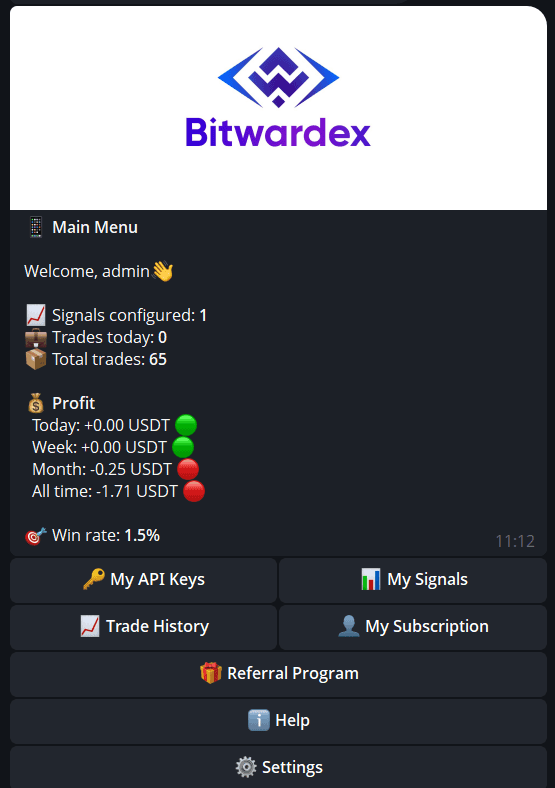
Adding an API Key
⚠️ Important: Currently, order execution is only available on the Bybit exchange. Support for other exchanges will be added in the future.
- In the bot's main menu, click the 🔑 My API Keys button
- Follow the bot's instructions to add an API key
- Create an API key on the Bybit exchange with the following permissions:
- ✅ Trading permission (Trade)
- ✅ Balance reading permission (Read)
- ❌ Do NOT grant withdrawal permissions (Withdraw)
⚠️ Important: Bitwardex uses API keys with limited permissions only for executing orders. Keys are stored in encrypted form and are not available in plain text.
- Paste the API key and Secret key into the bot's form
- Save the settings
Step 2: Creating a New Signal
- In the bot's main menu, click the 📊 My Signals button
- Click Add New Signal or Добавить новый сигнал
- Fill in the signal parameters:
- Select the exchange (use the API key added in the previous step)
- Select the trading pair (e.g., SOLUSDT)
- Configure strategy parameters:
- Leverage
- Margin Mode
- Other risk management parameters
⚠️ Important:
- Position size, Take Profit (TP) and Stop Loss (SL) levels are automatically taken from the strategy of the Bitwardex AI Algo indicator in TradingView. These parameters are not specified when creating a signal in the bot.
- Currently, order execution is only available on the Bybit exchange. Support for other exchanges will be added in the future.
- Save the signal
After creating the signal, the bot will show you important information that you will need to configure the indicator in TradingView.
Step 3: Obtaining Key Hash and Signal Hash
After creating a signal in the bot, you will see a panel with signal details that contains:
- API Key — name of your API key
- Status — signal status (Active/Inactive)
- Leverage — leverage
- Margin Mode — margin mode (Cross/Isolated)
- Key Hash — unique key identifier
- Signal Hash — unique signal identifier
- Webhook URL — URL for sending alerts
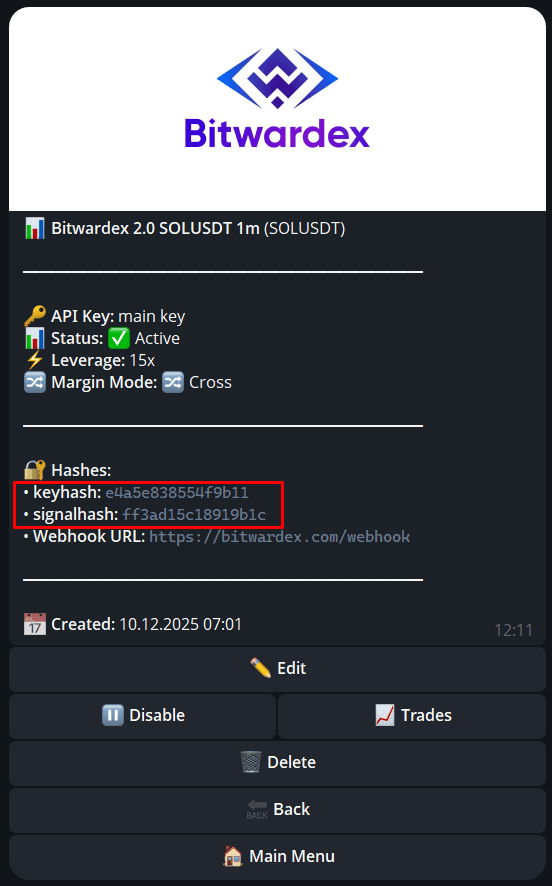
Important Information
Key Hash and Signal Hash are unique identifiers that must be added to the Bitwardex AI Algo indicator settings in TradingView. They link your signal in the bot with the indicator on the chart.
Webhook URL (https://bitwardex.com/webhook) is the address to which TradingView will send alerts for automatic trade execution.
Step 4: Configuring the Indicator in TradingView
Adding the Indicator
- Open TradingView
- Add the Bitwardex AI Algo indicator to the chart through the indicators menu (Invite-Only Scripts)
- Open the indicator settings
Configuring Alerts and Autotrading Sections
In the indicator settings, find the ALERTS and AUTOTRADING sections:
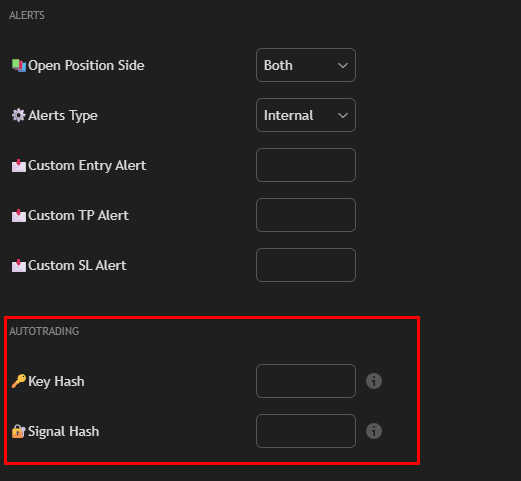
ALERTS Section
-
Open Position Side — select the position side:
- Both — for Long and Short positions
- Long — only for Long
- Short — only for Short
-
Alerts Type — select the notification type:
- Internal — standard TradingView notifications
- Custom — for autotrading (use this option)
AUTOTRADING Section
This section is critical for autotrading to work:
-
Key Hash — paste the Key Hash value obtained from the bot
- Copy the Key Hash from the signal panel in the bot
- Paste it into the Key Hash field in the indicator settings
-
Signal Hash — paste the Signal Hash value obtained from the bot
- Copy the Signal Hash from the signal panel in the bot
- Paste it into the Signal Hash field in the indicator settings
⚠️ Important: Key Hash and Signal Hash must exactly match the values from the bot. Check the correctness of copying.
Step 5: Creating an Alert in TradingView
After configuring the indicator, create an alert that will send signals to Bitwardex servers.
Opening the Alert Creation Dialog
- Right-click on the Bitwardex AI Algo indicator on the chart
- Select Add Alert
- The alert creation dialog will open with three tabs: Settings, Message, Notifications
Settings Tab
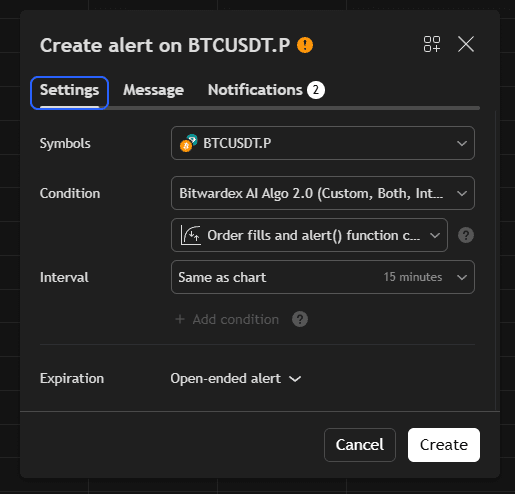
-
Symbols — select the trading pair (e.g., BTCUSDT.P)
-
Condition — mandatory select:
- Bitwardex AI Algo 2.0 (or your indicator version)
- Make sure the "Order fills and alert() function calls" option is selected
-
Interval — select the timeframe (e.g., "Same as chart" or a specific interval)
-
Expiration — select the alert expiration (recommended: "Open-ended alert")
⚠️ Critical: The alert condition must specify the Bitwardex AI Algo indicator. Without this, the alert will not work correctly.
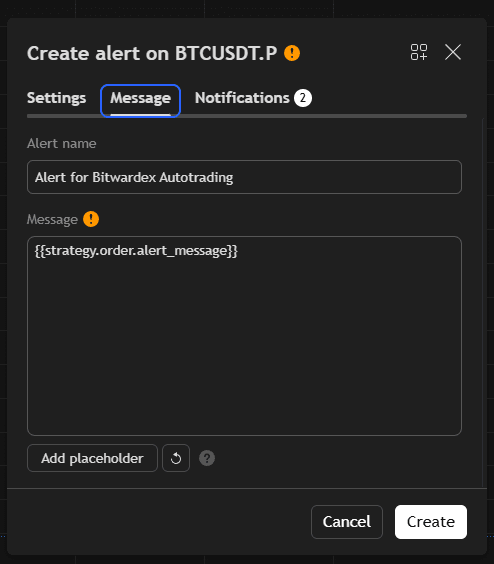
Message Tab
-
Alert name — specify the alert name (e.g., "Alert for Bitwardex Autotrading")
-
Message — mandatory specify the following placeholder:
{{strategy.order.alert_message}}⚠️ Critical:
- The Message field must contain only the placeholder
{{strategy.order.alert_message}} - Remove all other content from the Message field
- This placeholder is necessary for correct transmission of signal data to Bitwardex servers
- The Message field must contain only the placeholder
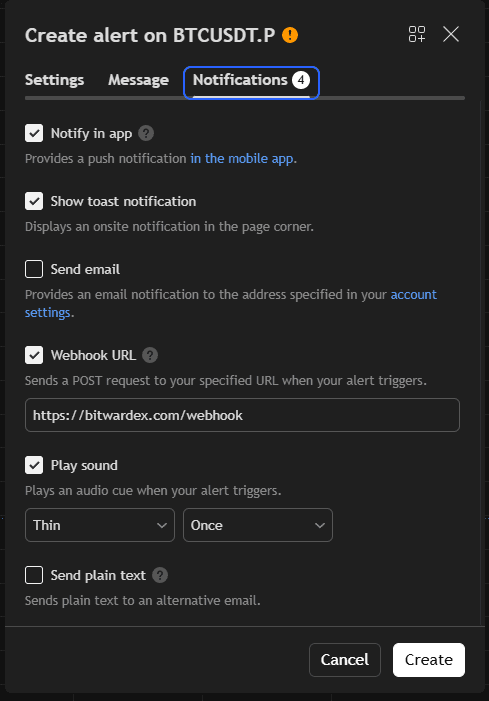
Notifications Tab
-
Enable the Webhook URL option (check the box)
-
In the Webhook URL field, mandatory specify:
https://bitwardex.com/webhook⚠️ Critical:
- The webhook URL must be exactly
https://bitwardex.com/webhook - Without the correct webhook, alerts will not be sent to Bitwardex servers
- Check the correctness of the URL spelling
- The webhook URL must be exactly
-
If necessary, configure other notifications:
- Notify in app — notifications in the mobile app
- Show toast notification — notifications on the website
- Send email — email notifications
- Play sound — sound notification
Saving the Alert
- Check all settings on all three tabs
- Click the Create button
- The alert will be created and activated
Verification
After creating the alert, the system will start working automatically:
- Indicator analyzes the market — Bitwardex AI Algo constantly analyzes the chart
- When a signal appears — the indicator generates a trading signal
- Alert triggers — TradingView sends data to the webhook
https://bitwardex.com/webhook - Bitwardex servers receive the signal — using Key Hash and Signal Hash, the system identifies your signal
- Trade executes automatically — according to the bot settings, a position opens on the exchange
Monitoring
In the Telegram Bot
- Open the bot @bitwardex_bot
- Click 📊 My Signals to view your signals
- Select the desired signal to view details
- Click Trades to view trade history
Checking Status
In the signal panel in the bot, you can see:
- Signal status (Active/Inactive)
- Number of trades
- Profit/loss
- Details of recent trades
Security
API Key Protection
- All API keys are stored in encrypted form on Bitwardex servers
- Modern cryptographic standards are used
- Key access is strictly limited
- Keys are not available in plain text
Security Recommendations
- Use limited permissions: Grant API keys only necessary permissions (trading and balance reading)
- Regular checks: Periodically check activity on the exchange
- Use IP filtering: If the exchange supports it, configure IP filtering for API keys
- Don't share keys: Never share API keys, Key Hash, or Signal Hash with third parties
- Verify the bot: Make sure you are using the official bot @bitwardex_bot
Troubleshooting
Alerts Not Triggering
- Check that the alert condition specifies Bitwardex AI Algo
- Make sure the Message field contains the placeholder
{{strategy.order.alert_message}} - Check that the Webhook URL is specified as
https://bitwardex.com/webhook - Make sure the indicator is active on the chart
Autotrading Not Working
- Check that Key Hash and Signal Hash are correctly copied from the bot
- Make sure the signal is active in the bot (Status: Active)
- Check the API key connection in the bot
- Make sure there are sufficient funds on the exchange
Order Execution Errors
- Check exchange limits (minimum order size, leverage limits)
- Make sure there are sufficient funds in the account
- Check that the instrument is available for trading
- Check leverage and margin mode settings in the bot
Key Hash or Signal Hash Not Working
- Make sure the values are copied completely, without spaces
- Check that you are using the correct values from the signal panel in the bot
- Make sure the signal is active in the bot
- Try recreating the signal in the bot and updating the values in TradingView
Additional Resources
- Autotrading Panel Guide — detailed description of Telegram bot functions
- Usage Recommendations — optimization for better results
- Risk Management — configuring risk management parameters
Support
If you have questions or issues:
- Telegram support: @bitwardex_support
- Telegram channel: @bitwardex
- Telegram bot: @bitwardex_bot
Tip: Start by testing on a demo account or with minimal position sizes. After making sure everything works correctly, gradually increase position sizes.