Alerts
Notification settings for opening positions and reaching TP and SL levels, as well as autotrading setup through Bitwardex servers
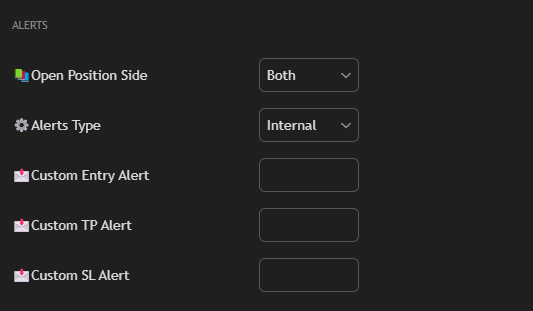
ALERTS Section
The ALERTS section allows you to configure notifications for trading signals from the Bitwardex AI Algo indicator.
Open Position Side
Select the side for notifications:
- Both: Notifications for Long and Short positions. Recommended for beginners to receive all signals.
- Long: Only for Long positions.
- Short: Only for Short positions.
Alerts Type
Notification type:
- Internal: Standard internal TradingView notifications. Used for regular notifications in the TradingView application.
- Custom: Custom messages for integration with external systems. Use this type to set up autotrading through Bitwardex servers.
Important: For autotrading through Bitwardex servers, you must select the Custom type.
Custom Entry Alert
Text for position entry notification. This field is used when the Custom notification type is selected.
You can use variables to substitute data:
{{symbol}}— instrument symbol{{side}}— position side (Long/Short){{price}}— entry price
Example:
Bitwardex: {{side}} signal on {{symbol}} at price {{price}}
Note: When using autotrading through Bitwardex servers, this field can be left empty, as data will be transmitted automatically through the webhook.
Custom TP Alert
Text for notification when the Take Profit level is reached.
Example:
Bitwardex: TP reached for {{symbol}} at level {{price}}
Custom SL Alert
Text for notification when the Stop Loss level is reached.
Example:
Bitwardex: SL triggered for {{symbol}} at level {{price}}
AUTOTRADING Section
The AUTOTRADING section is designed for configuring automatic trading through Bitwardex servers. This section is critical for autotrading to work.
Key Hash
Unique API key identifier that links your indicator with your account in the Bitwardex Telegram bot.
How to get Key Hash:
- Open the Telegram bot @bitwardex_bot
- Go to the 📊 My Signals section
- Select the desired signal
- Copy the Key Hash value from the signal panel
- Paste it into the Key Hash field in the indicator settings
⚠️ Important: Key Hash must exactly match the value from the bot. Check the correctness of copying, make sure there are no extra spaces.
Signal Hash
Unique signal identifier that links a specific signal in the bot with the indicator on the chart.
How to get Signal Hash:
- Open the Telegram bot @bitwardex_bot
- Go to the 📊 My Signals section
- Select the desired signal
- Copy the Signal Hash value from the signal panel
- Paste it into the Signal Hash field in the indicator settings
⚠️ Important: Signal Hash must exactly match the value from the bot. Each signal has a unique Signal Hash.
Information Icons
Next to the Key Hash and Signal Hash fields are information icons (ⓘ). Click on them to get additional information about how to use these fields.
Autotrading Setup
To fully set up autotrading through Bitwardex servers, follow these steps:
- Add an API key in the Telegram bot — see Alerts Setup Guide
- Create a signal in the bot — get Key Hash and Signal Hash
- Configure the indicator in TradingView:
- In the ALERTS section, select the Custom type
- In the AUTOTRADING section, paste Key Hash and Signal Hash
- Create an alert in TradingView with the webhook
https://bitwardex.com/webhook
For detailed instructions, see the Alerts Setup & Autotrading Guide.
Usage Examples
Internal Notifications
Use the Internal type for standard TradingView notifications:
- Notifications in the mobile app
- Notifications on the TradingView website
- Email notifications
- Sound alerts
This mode is suitable for manual trading when you want to receive notifications about signals and open positions yourself.
Custom Notifications
Use the Custom type for integration with external systems:
- Autotrading through Bitwardex servers
- Integration with Telegram bots
- Connection to trading robots
- Setting up your own signal processing systems
Autotrading via Bitwardex
When using autotrading:
- The indicator analyzes the market and generates signals
- The alert sends data to Bitwardex servers through the webhook
- The system automatically opens and closes positions according to the bot settings
- You can track all trades in the Telegram bot
Security
Protecting Key Hash and Signal Hash
- Do not share these values with third parties
- Keep them secure — they provide access to your trading account
- Use different Signal Hash for different strategies
- Regularly check activity in the Telegram bot
Recommendations
- Use unique Signal Hash for each trading pair or strategy
- Regularly check the status of signals in the bot
- Make sure API keys have only necessary permissions (trading and reading, without withdrawal)
Troubleshooting
Key Hash or Signal Hash Not Working
- Check that the values are copied completely, without spaces at the beginning or end
- Make sure you are using the correct values from the signal panel in the bot
- Check that the signal is active in the bot (Status: Active)
- Try recreating the signal in the bot and updating the values in TradingView
Alerts Not Triggering
- Make sure the Custom type is selected in the ALERTS section
- Check that Key Hash and Signal Hash are correctly pasted
- Make sure the indicator is active on the chart
- Check the alert settings in TradingView (see Alerts Setup Guide)
Autotrading Not Working
- Check that the signal is active in the Telegram bot
- Make sure the API key is valid and not expired
- Check the balance on the exchange
- Make sure the webhook is correctly configured in the TradingView alert
Additional Resources
- Alerts Setup & Autotrading — detailed step-by-step guide
- Autotrading Panel — description of Telegram bot functions
- Usage Recommendations — optimization settings
Tip: Start with the Internal notification type for manual trading to understand how the algorithm works. After that, proceed to setting up autotrading through the AUTOTRADING section.